The Drag, Shift + click guide
Drag from the first cell to the last, or click the first cell and Shift+click the last. From the keyboard, hold Shift and press the arrow keys. A range is written as its two corners, like C2:C9.
Three ways to select
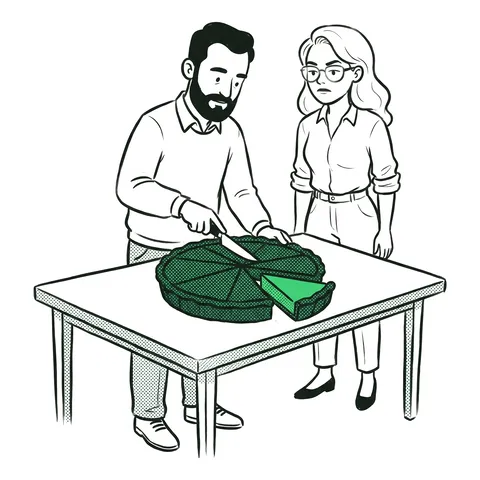
- Drag from the first cell to the last. Fine when both are on screen.
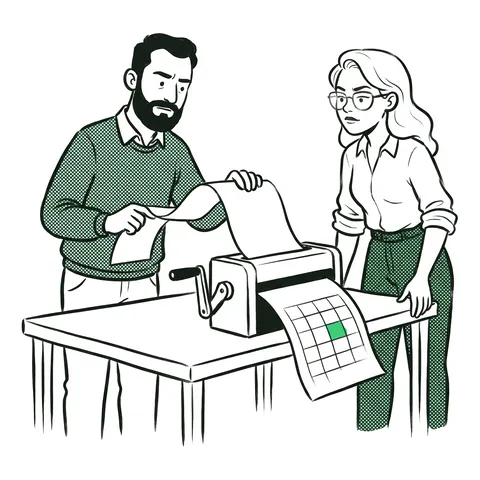
- Click, then Shift+click. Click the first cell, scroll if you need to, hold Shift and click the last. Nothing to hold down while you scroll.
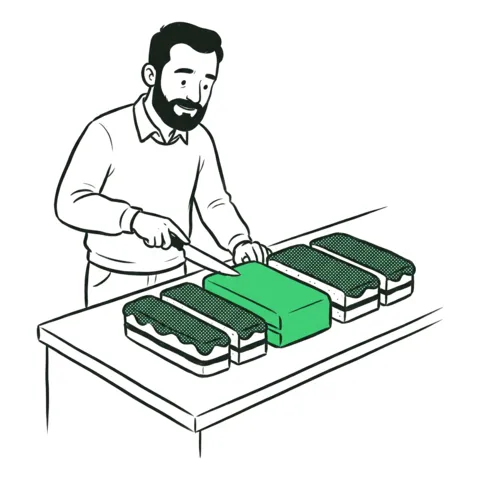
- Shift+arrows. Hold Shift and press ↓ or → to grow the selection one cell at a time. Add Ctrl (⌘ on a Mac) to go to the end of the data in one press: see select to the end.
To add cells that aren't next to each other, hold Ctrl (⌘ on a Mac) while you click or drag the next block.
Check what you selected
The Name box shows the first cell, and the status bar under the grid shows Count, Sum and Average for the selection. Eight amounts selected should say Count: 8. If it says 9, the header came along.
Common mistakes
- Taking the header. Start on the first value, not on the column title, when the selection is going into a formula or a chart.
- Clicking the column letter. That selects the whole column, a million rows, blanks and header included.
- Letting go of Shift too early. Shift+click only works if Shift is still down when you click.
FAQ
- How do I select a range of cells in Excel?
- Click the first cell and drag to the last, or click the first cell, hold Shift and click the last. With the keyboard, hold Shift and use the arrow keys.
- How do I select cells that are not next to each other?
- Select the first block, then hold Ctrl (Command on a Mac) while you click or drag the next one.
- How do I select a large range without scrolling?
- Type it in the Name box, for example C2:C5000, and press Enter, or click the first cell and press Ctrl+Shift+Down arrow.